
Deep Dive Into Flutter's Pubspec.yaml File
Whether we are starting a new Flutter project for web, mobile or desktop, there are two thing that will be common in all projects: the pubspec.yaml and pubspec.lock files. In this article we will explore the pubspec.yaml file - what it is and what we can do with it.
The Pubspec File
When we create a new Flutter Project, we usually have the following file tree:
.
├── README.md
├── android
├── ios
├── lib
├── pubspec.lock
├── pubspec.yaml
├── test
└── web
But what is exactly inside the pubspec.yaml file? Let’s examine it:
# General Section (Metadata)
name: fantastic_app
description: A fantastic app that does amazing things!
version: 1.0.0+1

# Environment
environment:
  sdk: ">=2.7.0 <3.0.0"

# Dependencies
dependencies:
  flutter:
    sdk: flutter

  flutter_bloc: ^6.0.6
  dio: ^3.0.10
  cupertino_icons: ^1.0.0

dev_dependencies:
  flutter_test:
    sdk: flutter

# Flutter specific configurations
flutter:
  uses-material-design: true
As we can see, the pubspec.yaml file is divided into different sections, let’s dive deep into each one.
General information - The Metadata
At the top of the file we see the name. This field dictates the package name, and also how we will import files inside this project or from this project. For example, if in one file we want to import the main.dart function, the import will be as follows:
import 'package:fantastic_app/main.dart';
However, if in the future we change the name field to to weather_app_prototype, we have to make sure to change all of our imports from fantastic_app to weather_app_prototype, which means that our main.dart import would look like the following:
import 'package:weather_app_prototype/main.dart';
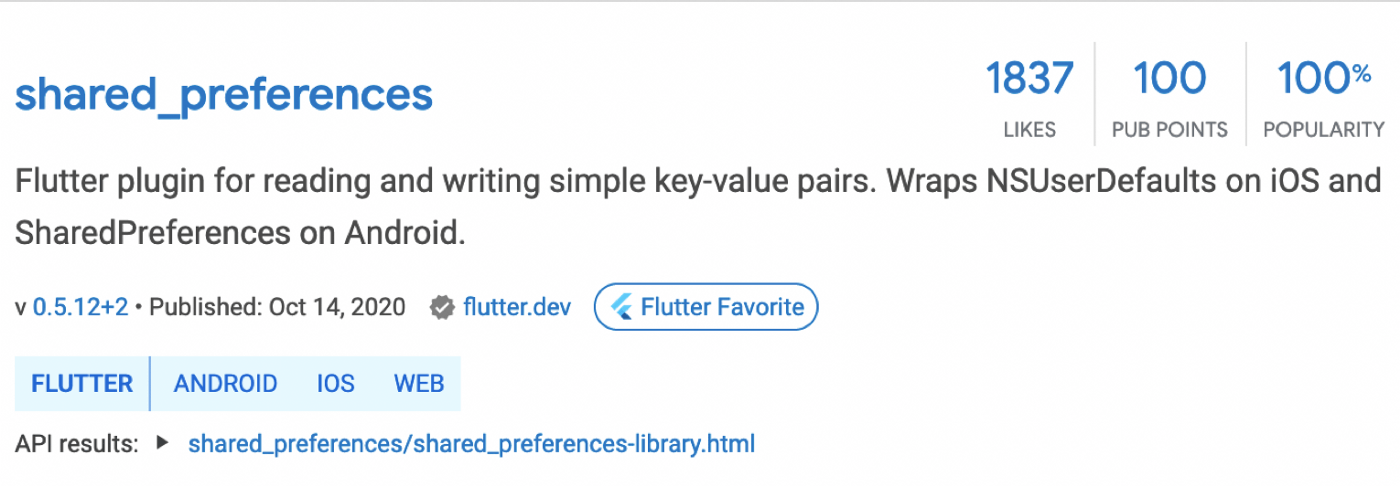
The description field, as the name implies, is an optional field that let us add a small description to our project. If we are creating a library, this description is what will be visible to everyone if we decide to publish our package on [pub.dev](https://app pub.dev), for example for shared_preferences, we have the following description: “Flutter plugin for reading and writing simple key-value pairs. Wraps NSUserDefaults on iOS and SharedPreferences on Android.” and, if we search for “shared_preferences” at [pub.dev](https://app pub.dev), we can see the description in the list of results:
The next parameter, version will allow us to add semantic versioning to the application or library. In the case of a mobile application, this is going to be the version that appears in the Google Play Store and iOS App Store. A Flutter app with version 1.2.3+4 means that it’s the version 1.2.3 with build version 4.
On the other hand, if we are creating a library, the versioning will give any user the ability to specify which version of the library they want to use, letting them decide whether to use shared_preferences: 0.5.12+2 or shared_preferences: 0.1.0.
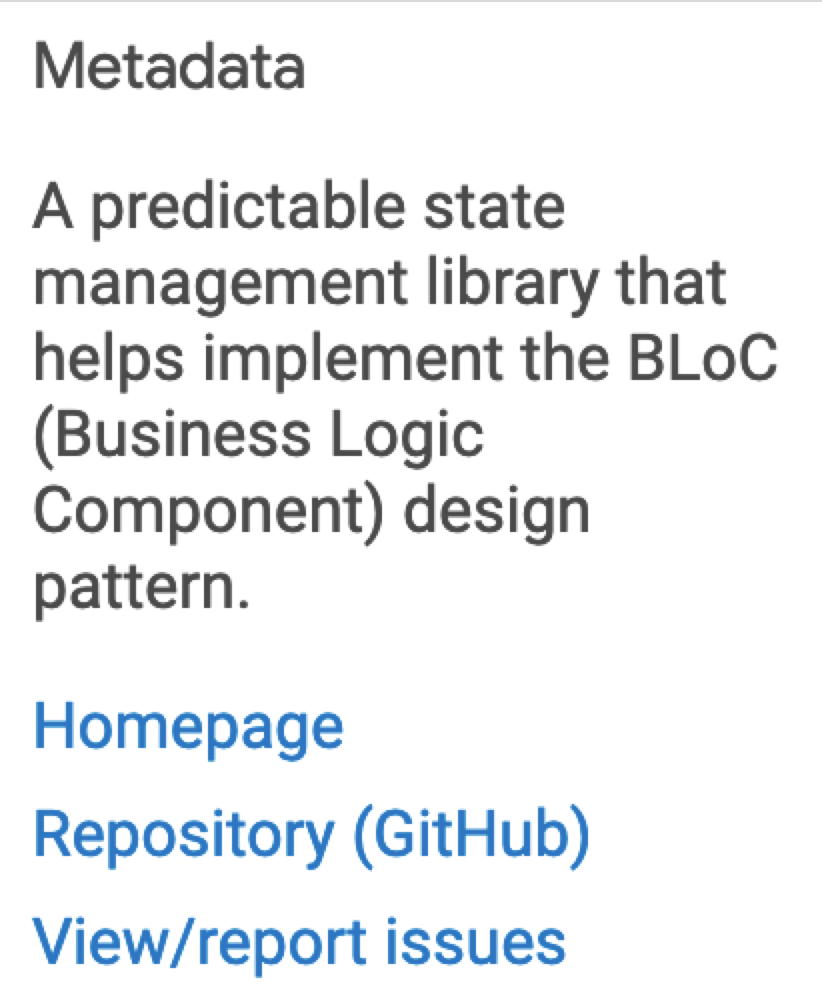
If we are creating a library project, there are additional optional fields that allows us to give more information about our package, specifically the author, homepage, issue_tracker and repository:
name: package
description: An example package
version: 0.0.1
author: Gonçalo Palma
homepage: https://awesome-flutter-package-docs.com
issue_tracker: https://github.com/vanethos/awesome_package/issues
repository: https://github.com/vanethos/awesome_package
These fields will also be shown in pub.dev in the Metadata section:
Environment
The next section will hold the environment fields. This field allows us to add constraints to both the Dart SDK and the Flutter Version, which means that when we use:
environment:
  sdk: ">=2.7.0 <3.0.0"
We are stipulating that this app or library will only run on Dart SDK versions higher or equal than 2.7.0 but lower than 3.0.0. We do not care what specific version it is currently using, only that it stays between these bounds.
Moreover, we can also stipulate what Flutter version we are going to use, using the flutter parameter:
environment:
  sdk: ">=2.7.0 <3.0.0"
  flutter: "1.22.0"
In this case, we only allow our app to run if we are using a Flutter version of 1.22.0. If we try to get our packages, through flutter pub get using any other Flutter version we will see the following error:
➜  example flutter pub get
The current Flutter SDK version is 1.22.1.

Because example requires Flutter SDK version 1.22.0, version solving failed.
Running "flutter pub get" in example...
pub get failed (1; Because example requires Flutter SDK version 1.22.0, version solving failed.)
By using these fields, we can even specify if we are using experimental features, such as sound null safety. In this case, we can set the Dart SDK constraints to the following:
environment:
	sdk: ">=2.11.0-213.0.dev <2.12.0"
Dependencies
The next two sections: dependencies and dev_dependencies contain all the packages that we are going to use in the application.
When declaring a dependency to a specific package, we must first know the different ways there are to do add them:
- Dependency from a package hosted on pub.dev
- Dependency from a path directory
- Dependency from a git repository
- Dependency from a custom pub server
The first one is the most commonly used. We go to pub.dev, select a package, such as bloc and go to the install section to see how we can add it to our project - by adding the dependency directly in the pubspec.yaml file in the dependencies section:
dependencies:
  bloc: ^6.1.0
However, imagine the following scenario: we /find a new issue/ with the bloc package and decide to clone the repository and fix it ourselves. We solve the issue locally, but then want to verify if the fix behaves correctly by testing it with our app.
In order to test it, we will need to compile the local bloc version with our app, and to do it we have to use the path reference. If for example our fix is situated in a directory called bloc_fixes_issue_110 in the same folder as the parent project, we can reference it by using ../bloc_fixes_issue_110
.
├── example
└── bloc_fixes_issue_110
The bloc dependency will have to be changed to the following:
dependencies:
	bloc:
		path: ../bloc_fixes_issue_110
After testing it locally, we decide to contribute to the package by creating forking the project and creating a /pull request/ with the branch fix/issue_110. While we wait for the fix to be merged, other people can use our fix by referencing the dependency by git reference as follows:
dependencies:
	bloc:
		git:
			url: https://github.com/felangel/bloc.git
			ref: bloc_fixes_issue_110
			path: packages/bloc
- The
urlis thegitreference for the repository - The
refrepresent a git reference, which can be a commit hash, tag or branch. - The
pathis to be used if the git repository has several packages. If we look atblocofficial github repository, we see that inside thepackagesare all thebloc-related projects, includingblocandflutter_bloc.
Finally, if we decide to have our own pub server (see the unpub repository), we have to let pubspec know that we are using a different pub server. This can easily be done by adding the hosted argument:
dependencies:
  bloc:
	  hosted:
      name: bloc
      url: http://your-package-server.com
    version: ^6.0.0
Now that we know how to add dependencies to our project, a question remains - what is the difference between dependencies and dev_dependencies?
The dependencies sections have all the dependencies needed to compile our application or library. So, if our app uses bloc, we need to add it to the dependencies section.
On the other hand the dev_dependencies are dependencies that our app require only on development time, such as test frameworks or libraries that generate code. This means that although we added tests to our app with the test package, it is not needed to compile the app, since it is only needed when we run tests. Furthermore, if we are using the built_value package that uses generated code using the build_runner package, we are certain that we only generate code when developing, so our compiled application or library does not need a dependency from build_runner in order to work, which is why we leave it only on dev_dependencies.
Dependency Overrides
Imagine the following scenario: we are using the bloc package with version 6.0.0, but at the same time we have a dependency on another package that uses version 5.0.0. If we try to get the dependencies for the app, we get the following error:
➜  example: flutter pub get
Because main_app depends on package from path which depends on flutter_bloc 5.0.0, flutter_bloc 5.0.0 is required.
So, because main_app depends on flutter_bloc 6.0.0, version solving failed.
Running "flutter pub get" in main_app...
pub get failed (1; So, because main_app depends on flutter_bloc 6.0.0, version solving failed.)
If we cannot increase the version of the library, or just want to test the application, how can we do it? By overriding the dependency usingdependency_overrides:
dependencies:
  flutter_bloc: 6.0.0

	package:
		path: ../package

dependency_overrides:
  flutter_bloc: 6.0.6
In summary: our package is using flutter_bloc version 5.0.0 and our app is using version 6.0.0. However, we need to run our app with version 6.0.6, so we override the dependency. By doing this, when pubspec compiles a list of all dependencies, it will use version 6.0.6, no matter what each app or library stipulates:
When getting the packages with this new field, we see a new warning message saying that we are using an overriden dependency:
➜  example: flutter pub get
Warning: You are using these overridden dependencies:
! flutter_bloc 6.0.6
Running "flutter pub get" in main_app...
However, a word of caution. The dependency_overrides will only be used in the application we are compiling. This means that if we have a dependency_overrides section on our package, and we compile the example app, the example app will ignore the dependency overrides of all other libraries.
Flutter section
At the bottom of our file, we see a section called flutter. When creating a new project we see that it already has a parameter: uses-material-design:
flutter:
  uses-material-design: true
This is where we have all the Flutter-specific configurations, such as assets and fonts:
flutter:
  uses-material-design: true

  assets:
    - images/a_dot_burr.jpeg
    - images/a_dot_ham.jpeg

  fonts:
    - family: Schyler
      fonts:
        - asset: fonts/Schyler-Regular.ttf
        - asset: fonts/Schyler-Italic.ttf
          style: italic
    - family: Trajan Pro
      fonts:
        - asset: fonts/TrajanPro.ttf
        - asset: fonts/TrajanPro_Bold.ttf
          weight: 700
This section is also used to set each platform’s version of a plugin, when creating a plugin package. Take as an example the connectivity package which stipulates different platform-specific code for android, ios, macos and web:
flutter:
  plugin:
    platforms:
      android:
        package: io.flutter.plugins.connectivity
        pluginClass: ConnectivityPlugin
      ios:
        pluginClass: FLTConnectivityPlugin
      macos:
        default_package: connectivity_macos
      web:
        default_package: connectivity_for_web
Conclusion
The pubspec.yaml file is transversal to all apps and packages - it is where we add metadata to our project, stipulate the Dart and Flutter SDK constraints, manage the dependencies and also set Flutter-specific configurations. To see a list of all the fields we can use, we can go to the official documentation for pubspec - The pubspec file.
However, one thing that we did not see is what happens after we get packages (via flutter pub get for example). Specifically what happens with the pubspec.lock file. This is going to be the topic of a future article where, among other things, we will see what is the ^ symbol that we have when declaring dependencies from pub.dev and why we should or should not use it.
Want to get the latest articles and news? Subscribe to the newsletter here 👇
And for other articles, check the rest of the blog! Blog - Gonçalo Palma